
Manual → Start Billing in 30 Minutes → Add Insurance (On the Fly)
Add Insurance On the Fly (First Claim)
AllMed PM lets you add insurance while you’re already inside the patient record.
You do not need to:
- Go to Setup
- Create insurance separately
- Save and come back to attach it
Everything happens in one step.
Open Insurance
- Finish and Save the patient demographics
- Press Alt + I
- The Insurance screen opens
- It defaults to Primary
Add a New Insurance Company
- Click the Insurance dropdown
- Select Add
You are now creating a new insurance company and attaching it to the patient at the same time.
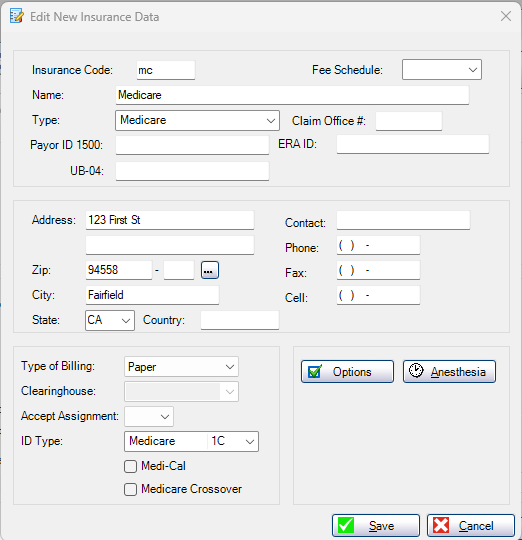
What to Enter (Minimum Required)
Insurance Code
- Short code used for quick search
- Example: MC for Medicare
- User-defined
- Type it once — next time you can just type the code and it appears
Name
- Full insurance name
- Example:
Medicare
Type
- Select the correct type
Example: Medicare
Address (ZIP First)
- Enter the ZIP code first
- City and State auto-fill
- Use the three dots (…) to select a different city if needed
Billing Settings (First Claim Defaults)
Type of Billing
- Select Paper
Accept Assignment
- Select Yes or No based on payer rules
ID Type
- Select the appropriate option
Example: Medicare
That’s all you need.
What You Can Skip for Now
Leave these blank:
- Fee Schedule (used mainly for anesthesia)
- Clearinghouse
- ERA ID
- Claim Office #
- Advanced Options
These can be set later without affecting today’s claim.
Save (Two Steps)
- Click Save (creates the insurance)
- Click OK (attaches it to the patient)
Why This Matters
Insurance is:
- Created
- Attached
- Ready to use
…without leaving the patient.
No duplicate work. No missed steps.

Copyright 2026 AllMed PM LLC, all rights reserved.